![Intuto-Logo-2019-RGB-600x600px-transparent.png]](https://support.intuto.com/hs-fs/hubfs/website/assets/img/logos/Intuto-Logo-2019-RGB-600x600px-transparent.png?width=40&height=40&name=Intuto-Logo-2019-RGB-600x600px-transparent.png)
You can:
- View and Export a Course Report
- View and Export a Collection Report
- View and Export a Group Report
- View and Export an Individual User Report
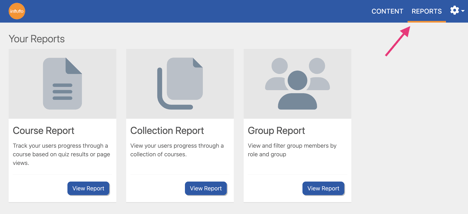
When you log into Intuto you will see a Reports tab in the top right. Click this to see your reporting options.
Viewing a Course Report
Click View Report in the Course Report section to access Course Reports for your learners.
Use the dropdown in the top right to select the course you would like to view the report of.
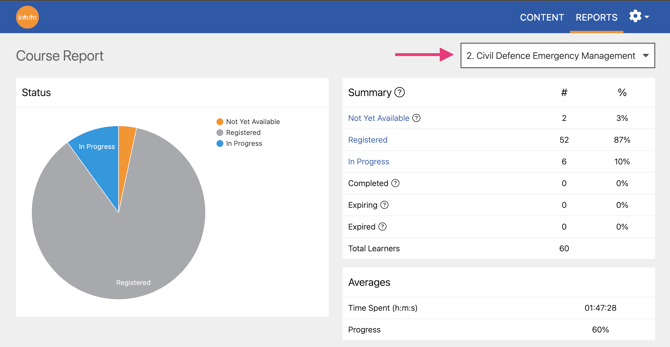
In the course report, you will be able to view and export the report for any courses that your group members are enrolled into.
The Status graph, Summary table and Averages data and the users at the bottom of the screen will be restricted by the group filter for the group they are the manager of.
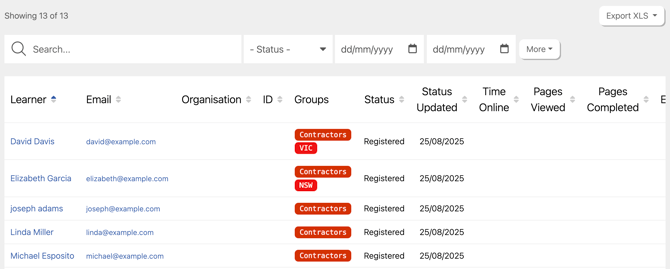
You can see:
- Learner details (name, email address etc.)
- The status of this course
- When the course status was last updated
- The time they have spent online in this course
- The number of pages they have viewed in this course
- The total number of pages completed in this course
- The expiry date (if the course has one set)
Use the search bar and filters at the top of your report to search for specific learners, show learners in a particular status, or show activity before, after or between a specific date.

Click Export XLS to export the data of your learners. Export XLS will export any data currently shown on screen, while Export Detailed XLS will give you a more in-depth breakdown with a line for each page in the course for each learner.
Viewing a Collection Report
Click View Report in the Collection Report section to access Collection Reports for your learners.
Use the dropdown in the top right to select the collection you would like to view the report of.
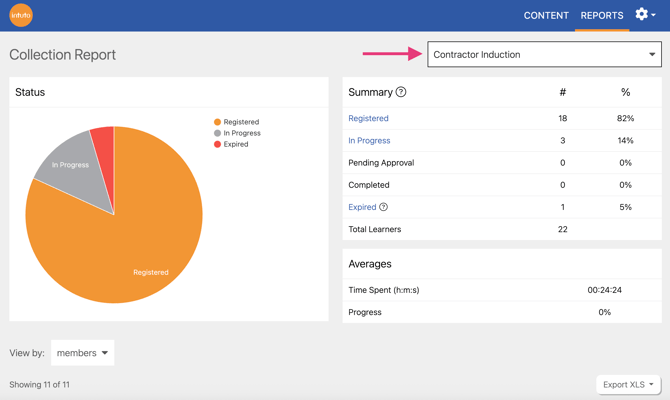
In the collection report, you will be able to view and export the report for any collecitons that your group members are enrolled into.
The Status graph, Summary table and Averages data will reflect everyone enrolled in the collection, while the users at the bottom of the screen will be restricted by the group filter for the group they are the manager of.

You can see:
- Learner details (name, email address etc.)
- The status of this collection
- When the collection status was last updated
- The number of courses completed in this collection
- The total number of courses in this collection
- The time they have spent online in this collection
Use the search bar and filters at the top of your report to search for specific learners, show learners in a particular status, or show activity before, after or between a specific date.

Click Export XLS to export the data of your learners. Export XLS will export any data currently shown on screen, while Export Detailed XLS will give you a more in-depth breakdown with a line for each course in the collection for each learner.
Viewing a Group Report
Click View Report in the Group Report section to access the group report.
In the Group Report you will be able to view and export a list of all learners in the group you are a manager of.

Use the search bar and filters at the top of your report to search for specific learners.
Click Export XLS to export the list of users in a spreadsheet.
Viewing an Individual User Report
You can view the individual user report for any users in your group by clicking on the user's name in one of the above reports.
In an individual user report you can see every course, collection, CPD point and campaign a particular user is enrolled into, and their progress. Use the drop down in the top right to view each type of completion.
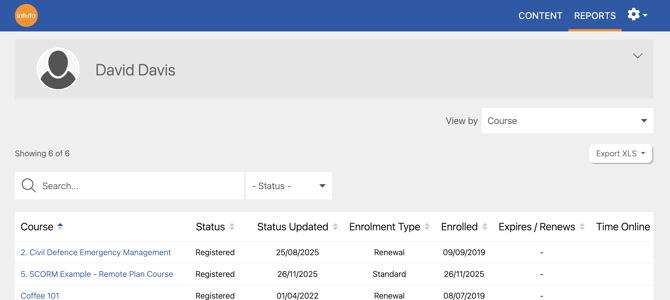
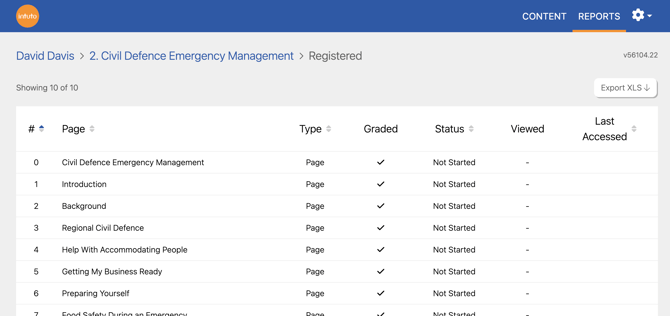
Click the name of a course to see the user's progress through that course, including pages completed and any quiz scores achieved.
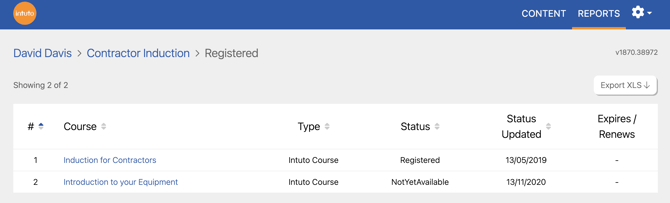
Click the name of a collection to see the user's progress through that collection, including courses completed and any expiry dates.
Use the Export XLS button on any page of the user report to export the data shown on screen.
Contact support@intuto.com for any help with viewing your group data.