![Intuto-Logo-2019-RGB-600x600px-transparent.png]](https://support.intuto.com/hs-fs/hubfs/website/assets/img/logos/Intuto-Logo-2019-RGB-600x600px-transparent.png?width=40&height=40&name=Intuto-Logo-2019-RGB-600x600px-transparent.png)
To use the Group Manager feature you can:
Note: The Group Manager feature will need to be added to your Intuto site, please contact us at support@intuto.com to start using the Group Manager.
To add a Group Manager, find the user on your users page and tick the box on the left of their name. Then use the Bulk Actions button to Add To . . .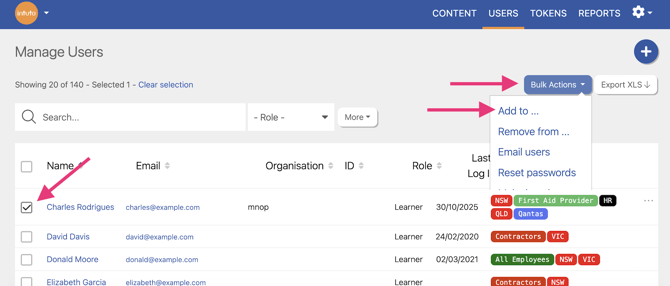
In the Popup, select Group in the Add to drop-down and change the Role dropdown from Member to Manager. Tick the group/s you want the selected users to be a group manager of, and use the tick box to notify the user of this change of enrolment by email if desired.
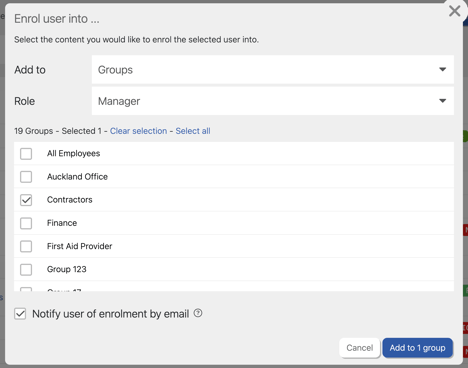
Note: If you add a group manager to a group they are not yet a part of, they will be added to the group and therefore will be enrolled into any collections associated with that group.
What A Group Manager Can See
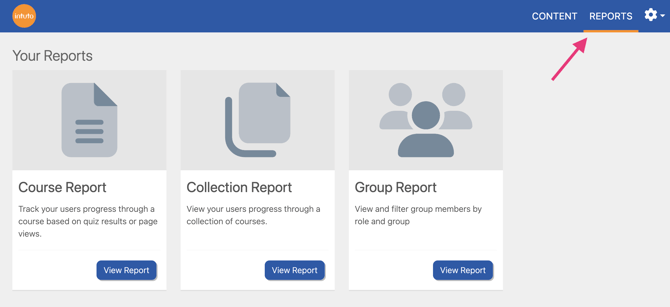
When a Group Manager logs into Intuto, they will see both the content page like normal, and will also have a reports tab at the top right.
If they click this reports tab, they will be able to see a course report, a collection report, and a group report.
In the course report, they will be able to view and export the report for any courses that their group members are enrolled into. The Status graph, Summary table and Averages data will reflect everyone enrolled in the course, while the user at the bottom of the screen will be restricted by the group filter for the group they are the manager of.
In a collection report, they will be able to view and export the report for any collections that their group members are enrolled into. The Status graph, Summary table and Averages data will reflect everyone enrolled in the collection, while the user at the bottom of the screen will be restricted by the group filter for the group they are the manager of.
In the group report, they will be able to view and export a list of all users in the group they are a manager of.
Group Managers can also view and export the user reports for users in their group by clicking on the user's name wherever it appears in the site.
You can see more detail about what a Group Manager can see here.
Note: Group Managers can only view reporting data. They can't make any changes to the completion status, add or remove users from courses/collections/groups, or edit a users profile.
Removing A Group Manager
To remove a group admin or group manager, you need to remove them from the group.
Find the user on the users page and tick the box to the left of their name, then use the Bulk Actions button to Remove from . . .
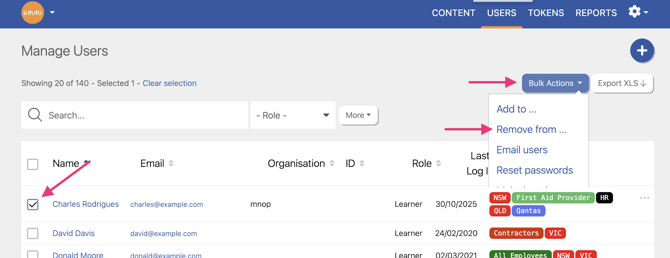
In the Popup, select Group in the Remove from drop-down and tick the group/s you want the selected users to be removed from.
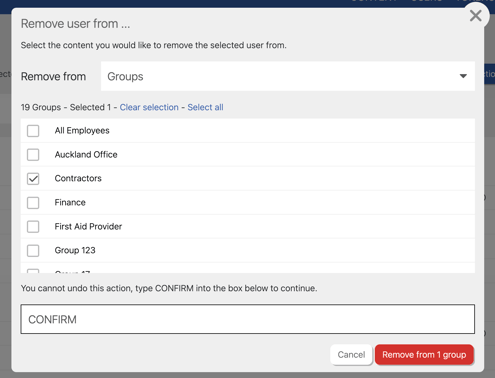
Once you are happy with your selection, type CONFIRM into the box at the bottom and click Remove from # group.
Contact support@intuto.com for any help with using Group Managers on your site.