![Intuto-Logo-2019-RGB-600x600px-transparent.png]](https://support.intuto.com/hs-fs/hubfs/website/assets/img/logos/Intuto-Logo-2019-RGB-600x600px-transparent.png?width=40&height=40&name=Intuto-Logo-2019-RGB-600x600px-transparent.png)
CPD (Continuing Professional Development) is a requirement in many industries and organisations. CPD is often tracked by points that relate to the number of hours of learning completed.
To track CPD points in Intuto, you can:
- Add CPD points to your courses
- Add CPD points to your collections
- Manually add CPD data and evidence
- Allow learners to add their own CPD data and evidence
- Access the CPD reporting data
Note: The CPD feature will need to be added to your Intuto site, please contact us at support@intuto.com to start tracking the CPD of your learners.
Add CPD points to your courses
You can add CPD points to your courses from the Course Settings page.
To access the Course Settings page, go into the Course Editor of the course you want to add CPD points to and click Settings at the top of the page, or Next on the right hand side.
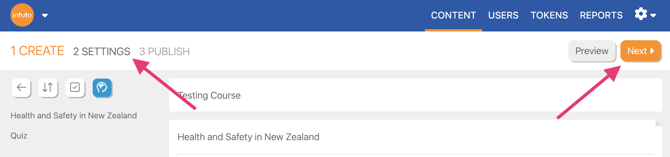
You will see a list of all available course settings with the CPD option part way down the page. To learn more about the other Course Settings available, click here.

Tick the box to turn on the CPD feature for your course. An additional field will appear where you can enter the number of points to award on completion of this course.
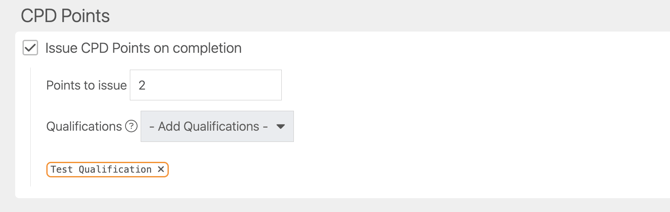
If you’d like these points to count toward a specific qualification, select the relevant qualification(s) from the list. You can link up to five qualifications per course. See How to set up CPD Qualifications and Cycles for more on this.
Once you are happy with the course settings, publish your course to save your changes by clicking Publish.

Please note: If you are using an integration to track your CPD points your settings and set up process may be different, please contact us at support@intuto.com for assistance.
Add CPD points to your collections
You can add CPD points to your courses from the Collection Editor.
To access the Collection Editor for an existing collection, go to the Collections page in your Settings.
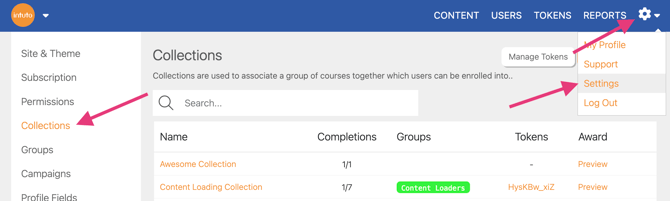
You will see a list of all existing collections on screen, click the pencil icon on the right hand side of the collection you want to add CPD points to and click Edit.
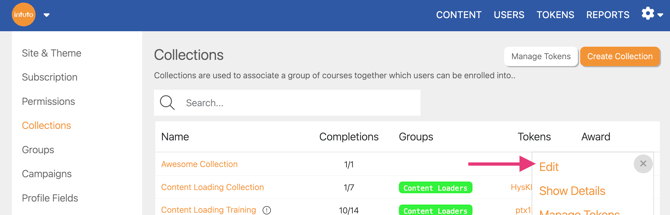

Tick the box to turn on the CPD feature for your collection, you'll then see an additional line and box appear where you can enter how many points should be awarded upon completion of this course.
If you’d like these points to count toward a specific qualification, select the relevant qualification(s) from the list. You can link up to five qualifications per collection. See How to set up CPD Qualifications and Cycles for more on this.
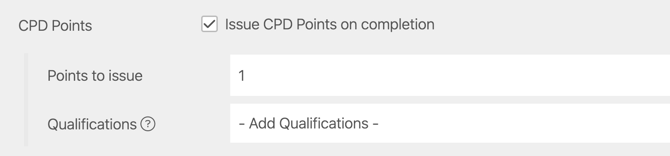
Once you have entered the number of CPD points and are happy with the other collection settings, publish your collection to save your changes by clicking Publish at the bottom of the page.

Please note: If you are using an integration to track your CPD points your settings and set up process may be different, please contact us at support@intuto.com for assistance.
Manually Add CPD Data and Evidence
Admin can manually add CPD data and evidence to individual user reports. This can be useful if learning has been done outside of the system such, such as face to face sessions.
To add CPD data and evidence, find the learner on the Users page and click their name to open their User Report. Use the view dropdown to switch to the CPD view, then click Add CPD.
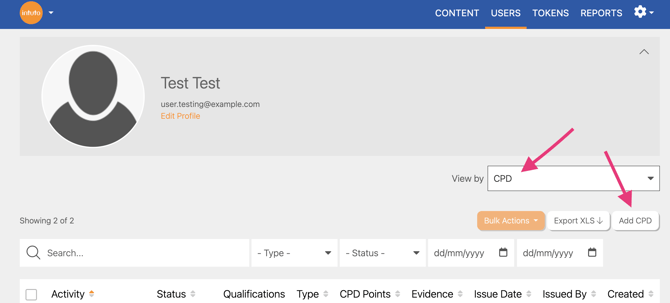
You'll see the following popup.
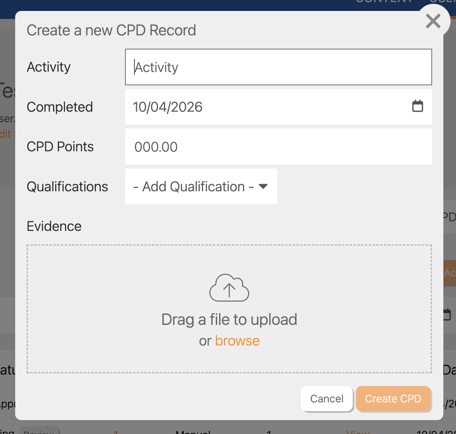
To create a new CPD record, add the following details:
- Activity - The name of the CPD activity that will be shown in the CPD report.
- CPD Points - The number of CPD points associated with this record.
- Completed - The date the CPD activity was completed.
- Qualification - The Qualification that this CPD counts toward.
- Evidence - Add a file to the CPD record. This may be a certificate or other document associated with the CPD activity.
Once you have added the CPD details, click Create CPD Record to save the CPD activity details to the users individual report. You'll also see when the CPD record was created, and who it was created/issued by.
Allow Learners to Add Their Own CPD Data and Evidence
You can allow learners to view, upload and delete their own CPD data.
Learn how to enable learner uploads and set up manual approvals here.
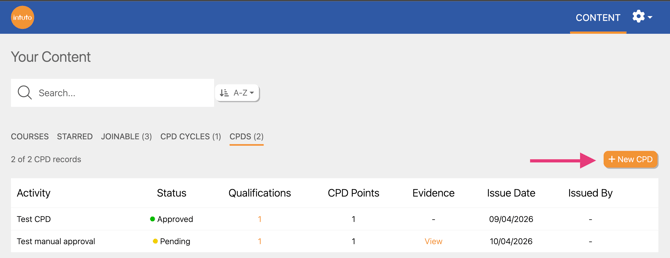
Once enabled, learners can go to the CPD tab on their content page and click New CPD to add a record, including uploading evidence. If manual approval is required, the record will show as Pending until an admin reviews it. Learn how to view and approve pending CPD here.
Access the CPD reporting data
When users upload or are awarded CPD points, you'll be able to see a record of these in the Users Profile and in the CPD report.
User Profile CPD Report
To access the User CPD Report, view a User report by clicking a User's name on the Users page.
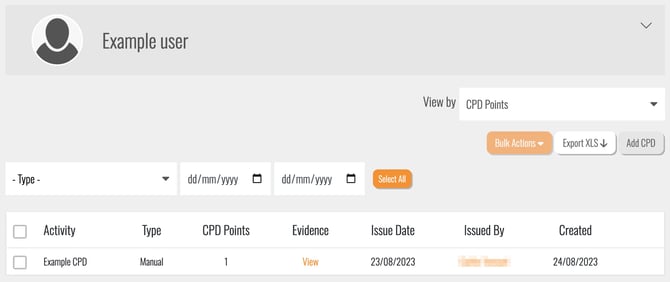
Use the dropdown on the right hand side to view by CPD Points. To learn more about the other features of the User Report click here.
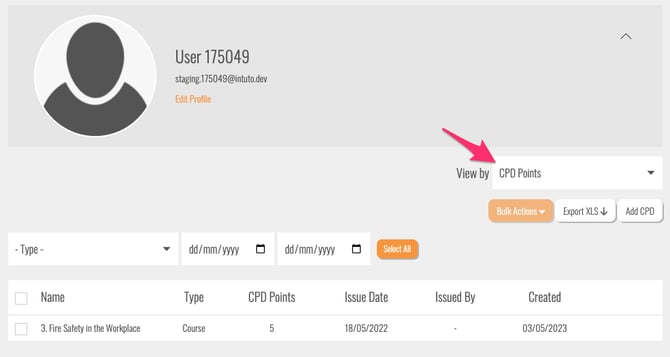
CPD points will appear on the CPD points report as they are awarded, and the CPD points report can be exported/downloaded at any time by clicking Export XLS in the top right of the CPD points report page.
CPD Report
You can also view a report of all CPD points issued on your site from the CPD Report. To access the CPD Report, click Report in the top right and click view in the CPD report section. You can learn more about the CPD Report here.
Please contact us at support@intuto.com if you have any questions about adding CPD points to your site.