![Intuto-Logo-2019-RGB-600x600px-transparent.png]](https://support.intuto.com/hs-fs/hubfs/website/assets/img/logos/Intuto-Logo-2019-RGB-600x600px-transparent.png?width=40&height=40&name=Intuto-Logo-2019-RGB-600x600px-transparent.png)
Configuring your CPD settings allows you to control how your learners are awarded and interact with CPD points on your site.
You can:
To access CPD Settings, click the cog in the top right of your site to access your Settings and select CPD from the menu.
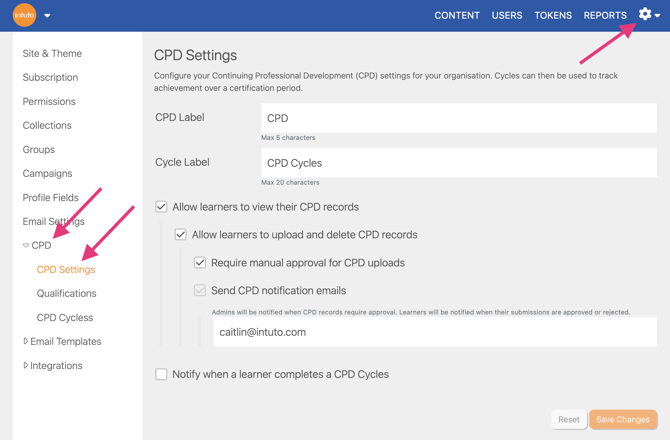
Note: The CPD feature needs to be enabled on your site before these settings will appear. Contact us at support@intuto.com to have the CPD feature turned on.
To finish setting up your CPD programme in Intuto, you can also learn how to award and track CPD points, and how to set up CPD qualifications and cycles.
Customising your CPD labels
Intuto allows you to rename the CPD feature to match the terminology your organisation and members use.

CPD acronym
The main label shown throughout your site defaults to CPD. You can change this to any acronym up to five characters, for example:
- "CE" - Continuing Education
- "PD" - Professional Development
- "CPE" - Continuing Professional Education
This is what your learners will see on their content page and in their records.
Cycle label
You can also customise the label used for CPD cycles. This can be up to 20 characters - for example, “Continuing Education” or “Professional Development”.
Once saved, this label will appear wherever CPD cycles are displayed to learners.
Note: We use the default names of CPD and CPD Cycles throughout our Help Articles.
Learner visibility and permissions
You can control how much access learners have to their own CPD records.

Tick Allow learners to view their CPDs to add a CPD tab to the learner’s content page, where they can see all points awarded to them.
Tick Allow learners to upload and delete CPD records to allow learners to add their own CPD records from their content page, including uploading evidence such as certificates or attendance records. They can also delete records they have uploaded themselves.
Approvals and Email Notifications
You can set up approvals and email notifications to keep your team informed of CPD activity.
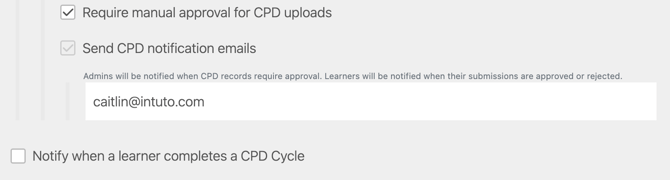
Approval notifications
If you would like to review learner-submitted CPD before it counts towards their record, tick Require manual approval. You can then enter up to 5 email addresses to be notified when a CPD record needs approval.
When this is on:
- Learner-uploaded CPD will show as Pending until reviewed by an admin.
- An email notification will be sent to your designated address/es when a record is ready to approve.
- Admins can approve or reject records from the CPD Reports page.
- Approved records will count towards their qualifications and cycles, rejected records will not.
Note: CPD records added directly by an admin are not subject to the approval requirement - they are applied immediately.
Learner upload notifications
If you are not requiring manual approval of CPD, you can still be notified when a CPD is uploaded. Tick Send CPD notification emails to receive an email whenever a learner adds a new CPD record. Enter up to 5 email addresses, separated by commas.
Cycle completion notifications
You can also choose to receive an email each time a learner completes a CPD cycle. Enter the email address(es) you would like these notifications sent to.
Once you’re happy with your configuration, click Save Changes to apply the changes to your site.
Please contact us at support@intuto.com if you have any questions about your CPD settings.