![Intuto-Logo-2019-RGB-600x600px-transparent.png]](https://support.intuto.com/hs-fs/hubfs/website/assets/img/logos/Intuto-Logo-2019-RGB-600x600px-transparent.png?width=40&height=40&name=Intuto-Logo-2019-RGB-600x600px-transparent.png)
To see a report of the CPD points issued on your site you need to:
Accessing the Report
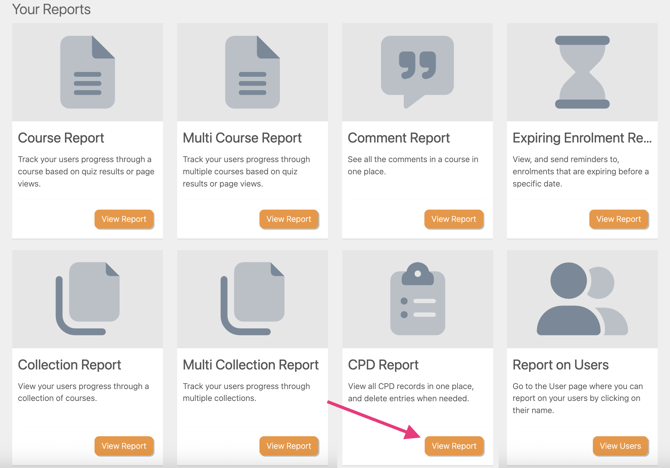
You can access the CPD report from your Reports page. Click Reports and then View Report in the CPD section.
Reading the Data
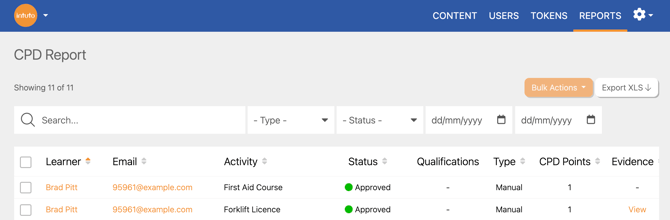
You will see a list of the CPD points issued on your site.
The details will include:- Learner name
- Learner email address
- The course/collection/CPD activity name entered
- The status of the CPD
- Any qualifications the CPD relate to
- The type of CPD
- The number of CPD points issued
- Any evidence of the CPD
- The date the CPD points were issued
- Who they were issued by (if added manually)
- The date the CPD record was created
You can search for specific learners or a specific activity name by typing in the search bar. You can also use the dropdown boxes to filter by CPD type (course, collection or manually issued), Status (Pending, Approved or Rejected) as well as date.
To view more details about the learner and their progress, click the name or email address of the user to view the User Report. Find out more about User Reports here.
Click the button in the Evidence column to view the certificate or uploaded evidence for the CPD record.
Approve Pending CPD
If you have enabled manual approval for learner-uploaded CPD, the CPD Report is where you can review and action pending records. Learn how to enable learner-upload CPD, and manual approval of these here.
When a learner submits a CPD record for approval, a notification email is sent to your designated email addresses. The email will contain a link to the CPD report.
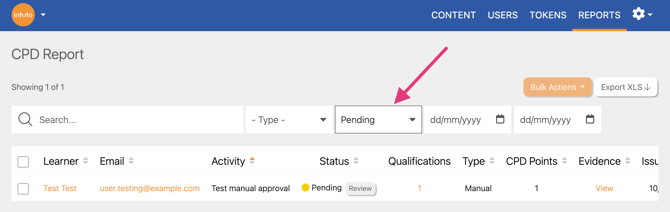
To review pending records, click the Pending filter at the top of the CPD Report. You will see all records awaiting review.
Click Review in the Status column to review the CPD details.
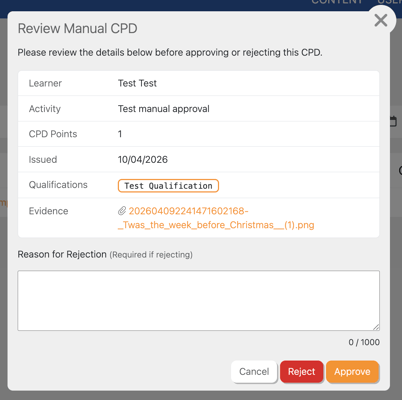
Once you have reviewed the record, you can use the buttons at the bottom pf the popup to:
-
Approve the record - the CPD will be immediately added to the learner’s profile and count towards any relevant qualification and cycle.
-
Reject the record - the CPD will show as rejected on the learner’s profile and will not count towards any qualification. If you are rejecting a record you must enter a reason into the text box.
Note: Records uploaded by an admin are applied immediately and do not appear in the Pending queue, even if manual approval is enabled.
Exporting the Report
Click Export Report at any time to download an excel spreadsheet (.xlsx file) of the data currently displayed on screen. This can then be filtered, shared or stored as needed.
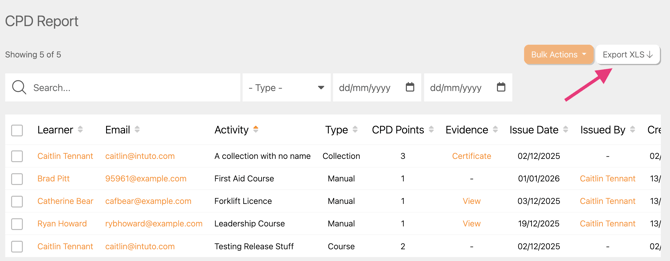
Note: Your exported report will reflect any search filters you have applied (name, course/collection, date) so make sure these are correct.
Contact us at support@intuto.com for help with the CPD Report.