![Intuto-Logo-2019-RGB-600x600px-transparent.png]](https://support.intuto.com/hs-fs/hubfs/website/assets/img/logos/Intuto-Logo-2019-RGB-600x600px-transparent.png?width=40&height=40&name=Intuto-Logo-2019-RGB-600x600px-transparent.png)
To allow certificates to be shared directly to LinkedIn, you can:
Note: The LinkedIn Certificate Sharing feature needs to be added to your Intuto site. Contact support@intuto.com if you would like this feature turned on.
Enable the LinkedIn Certificate Feature
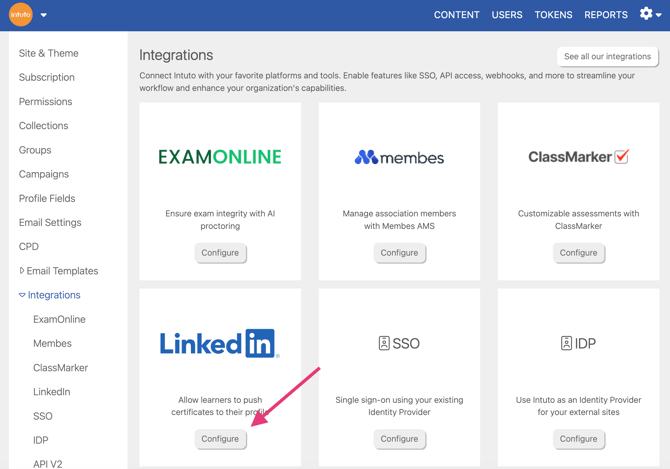
To enable the LinkedIn Certificate sharing feature, go to your Site Settings and click on Integrations.
In the Integrations Tab, click Configure on the LinkedIn section:
You'll be taken to a settings page. Tick the Enable LinkedIn Certificate Sharing box to turn on the feature. You'll then see an area to enter you LinkedIn Organization ID. This is used to tell LinkedIn which company is awarding the certificate, and can be found in the URL of your company Linkedin page when viewing as an admin.
For example, if the URL for the Admin area of your company LinkedIn Page is https://www.linkedin.com/company/8681905/admin/, the company ID is 8681905.
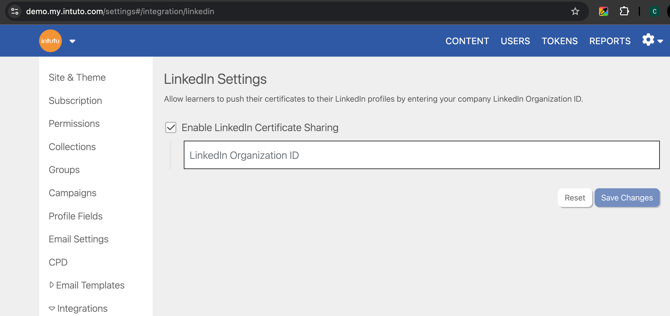
Enter this ID number into the box and click Save Changes.
Share Certificates to LinkedIn
Once you have enabled the LinkedIn Certificate Sharing feature, any learner on your Intuto site that has received a certificate will be able to add that certificate as a license or certification on their LinkedIn profile.
When viewing their certificates, learners will see a LinkedIn Add to profile button on the left:
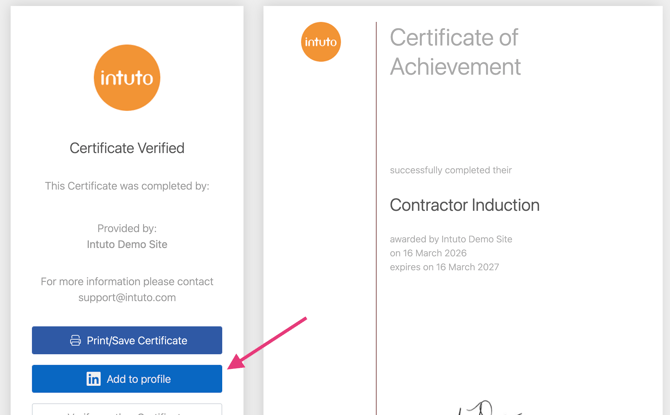
Clicking this will take them to LinkedIn, prompting them to log in if needed. Once logged in, the learner will see the pre-filled option to add a license or certification. This will pull the details directly from their certificate and will include the certificate URL.
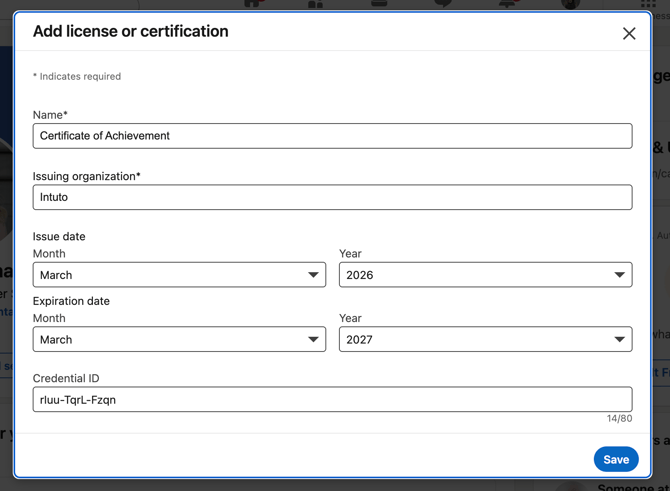
When a learner clicks save, the certification will be added to the certifications section of their profile, with the link to the certificate available for view.
View certificates on LinkedIn
Once your learners add their certificates to LinkedIn, you'll be able to see the certificates listed on the learner's profile. LinkedIn will also make a post to the learner's network, so keep an eye out for these posts so you can celebrate your learner's achievements.
See how to view your own Licenses and Certifications here.
Feel free to contact support@intuto.com for help with sharing certificates to LinkedIn.